Monday, February 10, 2014

Monday, January 13, 2014
Failed to load libGL.so when running Android Emulator in Ubuntu
Starting emulator for AVD 'Nexus'
Failed to load libGL.so
Failed to allocate 2147483648 B: Cannot allocate memory
error libGL.so: cannot open shared object file: No such file or directory
Failed to load libGL.so
error libGL.so: cannot open shared object file: No such file or directory
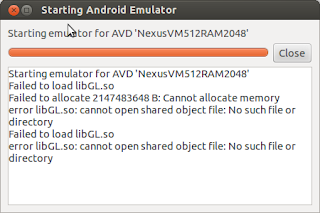
Two ways to fix the problem:
1st: Create a symbolic link or soft link to /usr folder
Failed to load libGL.so
Failed to allocate 2147483648 B: Cannot allocate memory
error libGL.so: cannot open shared object file: No such file or directory
Failed to load libGL.so
error libGL.so: cannot open shared object file: No such file or directory

Two ways to fix the problem:
1st: Create a symbolic link or soft link to /usr folder
Command: ln -s /usr/lib/libGL.so.12nd: Install the OpenGL driver/tools/lib/libGL.so
Command: sudo apt-get install libgl1-mesa-dev
Friday, January 10, 2014
Eclipse Indigo - Ubuntu 12.04 Failed To Open Error: swt/lib/linux/x86/libswt-gtk-3740.so
After installing Eclipse Indigo in Ubuntu Desktop 12.04, the Eclipse failed to start. An error message box displayed:

To fix the problem, simply create a symbolic link into your home folder. Use the command below:
For Ubuntu 12.04 32 bit:
ln -s /usr/lib/jni/libswt-* ~/.swt/lib/linux/x86/
For Ubuntu 12.04 64 bit:
ln -s /usr/lib/jni/libswt-* ~/.swt/lib/linux/x86_64/
If you have questions, please leave a comment(s).
Saturday, November 30, 2013
3 Steps to Run H2 Database in Ubuntu server remote
Step 1: Pre-requisite: make sure you have Java installed from your machine
Step 2: From you console / terminal download H2 Database jar file:

Note: If you don't have Java installed from your Ubuntu server, the H2 database will not work. To verify if you have Java version "java -version". For more information regarding Java installation from Ubuntu please visit the link http://interface101.blogspot.com/2013/11/how-to-download-java-7u45-ubuntu.html.
Hope this will guide for those who are looking for quick configuration of H2 Database.
If you have any questions or comments, please don't hesitate to comment below.
Step 2: From you console / terminal download H2 Database jar file:
wget http://repo1.maven.org/maven2/com/h2database/h2/1.3.174/h2-1.3.174.jarStep 3: Execute the command below from the (one-line)
java -cp ./h2-1.3.174.jar org.h2.tools.Server -web -webPort 8081 -webAllowOthers -tcp -tcpPort 8082 -tcpAllowOthers -baseDir [data_folder_location]
Now let's verify if the server is running.
Open a browser from a different machine and type the IP address of your Ubuntu server and port 8081 (i.e. http://[IP_ADDRESS]:8081). This will display the remote console web UI for your H2.

After connecting to the database, you will see a new file created from [data_folder_location]and an Admin Console will display from your browser (pls refer screenshot below). You can start creating your schema, tables, etc.


Note: If you don't have Java installed from your Ubuntu server, the H2 database will not work. To verify if you have Java version "java -version". For more information regarding Java installation from Ubuntu please visit the link http://interface101.blogspot.com/2013/11/how-to-download-java-7u45-ubuntu.html.
Hope this will guide for those who are looking for quick configuration of H2 Database.
If you have any questions or comments, please don't hesitate to comment below.
How to download Java 7u45 Ubuntu console or terminal using WGET command?
When downloading a Java JDK installer using a simple "WGET" command from Ubuntu terminal or Mac OS terminal, you will end of getting an HTML file because it requires you to click the "Accept agreement..." from the web browser. In my case I need to download it from a console or terminal because my server doesn't have ubuntu-desktop GUI installed.
To make the WGET command work from a terminal or console and download the Java JDK 7, use the command below:
Hope it helps for those who are looking for a quicker way.
That's all.
To make the WGET command work from a terminal or console and download the Java JDK 7, use the command below:
wget --no-cookies --no-check-certificate --header "Cookie: gpw_e24=http%3A%2F%2Fwww.oracle.com" "http://download.oracle.com/otn-pub/java/jdk/7u45-b18/jdk-7u45-linux-x64.tar.gz"The code snippet above is the command that I used to download the JDK 7u45 into my Ubuntu 12.04 64 bit Server from a terminal perspective. The command is just a one line.
Hope it helps for those who are looking for a quicker way.
That's all.
Tuesday, October 15, 2013
Adobe Illustrator CS5 stopped working. Reason: ScriptingSupport.aip
I just recently encountered this error "ScriptingSupport.aip" when I tried to open my Illustrator CS5. It was working before and the only changes that I've made was adding a 4th monitor in replacement of my built-in laptop display.
The previous setup:
One monitor connected in DVI DELL M4600 docking station
Two monitor connected in Toshiba Dynadock and Dynadock was connected in USB of DELL M4600 docking station
One built-in DELL M4600 laptop display
Note: On this setup, the Illustrator CS5 was working fine
The current setup:
One monitor connected in DVI DELL M4600 docking station
Two monitor connected in Toshiba Dynadock and Dynadock was connected in USB of DELL M4600 docking station
One monitor connected in VGA DELL M4600 docking station
Built-in DEll M4600 laptop display is closed
Note: On this setup, the Illustrator CS5 has stopped working
To solve the error:
Close Illustrator CS5 if it still open
Disconnect one of the monitor, in my case I disconnected the 3rd monitor because it was my new additional monitor in replacement of my built DELL M4600 monitor
Apply the settings
Open Illustrator CS5 now and it will open successfully
Monday, July 22, 2013
How to fix the vFabric Web Server Error - Permission denied: access to / because search permission are missing - Linux
Permission denied: access
to /favicon.ico denied (filesystem path '/opt/myserver/vfabricws') because
search permissions are missing on a component of the path
[Mon Jul 22 16:08:30 2013] [crit] [client
10.1.1.88] (13)Permission denied: DBM failure while logging transaction in
mod_bmx_vhost
[Mon Jul 22 16:08:31 2013] [error] [client 10.1.1.88]
(13)Permission denied: access to /index.html denied (filesystem path
'/opt/myserver/vfabricws') because search permissions are missing on a
component of the path
[Mon Jul 22 16:08:31 2013] [crit] [client 10.1.1.88]
(13)Permission denied: DBM failure while logging transaction in mod_bmx_vhost
I noticed that after I
upgrade the server from ERS to vFabric WS, I encountered an error which I
stated above. I listed below on how to fix it.
How to fix the error:
Step 1) Check the user
and group owner of the folder where you install the vFabric Web Server (i.e. ls
-l ).
Example:
[rhserver]$ ls –l /opt/myserver/vfabricws
drwxrwxr-x. 2 wadmin
wsgrp 4096 Jul 22 17:02 vfabricws
The vabfricws user owner is wadmin and groupowner is wsgrp
Step 2) Open your file conf/httpd.conf and look for the text User
vfhttpd and Group vfhttpd or
sometimes User nobody or Group nobody
Example:
User vfhttpd
Group vfhttpd
Or
User nobody
Group nobody
Step
3) Change User for vfhttpd or nobody to wadmin, and change Group owner from vfhttpd or nobody to wsgrp
Example:
User wadmin
Group wsgrp
Step 4)
Save the httpd.conf file.
Step 5) Restart your vfabric WS (i.e. sudo ./httpdctl stop; sudo ./httpdctl start;)
Now verify if you still getting an error in you error.log
Subscribe to:
Posts (Atom)